
Procore
Hardline uses Procore OAuth client credentials for automated Procore access. Procore recommends Developer Managed Service Accounts (DMSA) for data-connection style apps because they use the OAuth 2.0 client credentials flow for system-to-system access.
Provider docs:
- Procore OAuth client credentials
- Procore Developer Managed Service Accounts
- Procore sandbox environments
- Procore building data connection apps
- Procore custom app installation
- Procore permitted project setup
What you need
Section titled “What you need”- A Procore company admin who can install and configure the app.
- A Procore developer app with DMSA or service-account access.
- The app’s client ID and client secret.
- Project permissions for the Procore tools you want Hardline to use.
Recommended auth model
Section titled “Recommended auth model”Use Client credentials in Hardline.
Hardline sends the Procore client ID and client secret to Procore’s token endpoint, receives a short-lived access token, and uses that token for Procore API calls. Hardline does not ask users to paste their personal Procore password.
Create the Procore credential
Section titled “Create the Procore credential”- Sign in to the Procore Developer Portal.
- Create or open the app your organization will use for Hardline.
- Configure the app for the OAuth client credentials flow with a Developer Managed Service Account.
- Copy the client ID.
- Copy the client secret. Store it securely because it will not be safe to expose later.
- Copy the app’s 36-character App Version ID. You will need it to install the app in Procore.
Configure the required app permissions
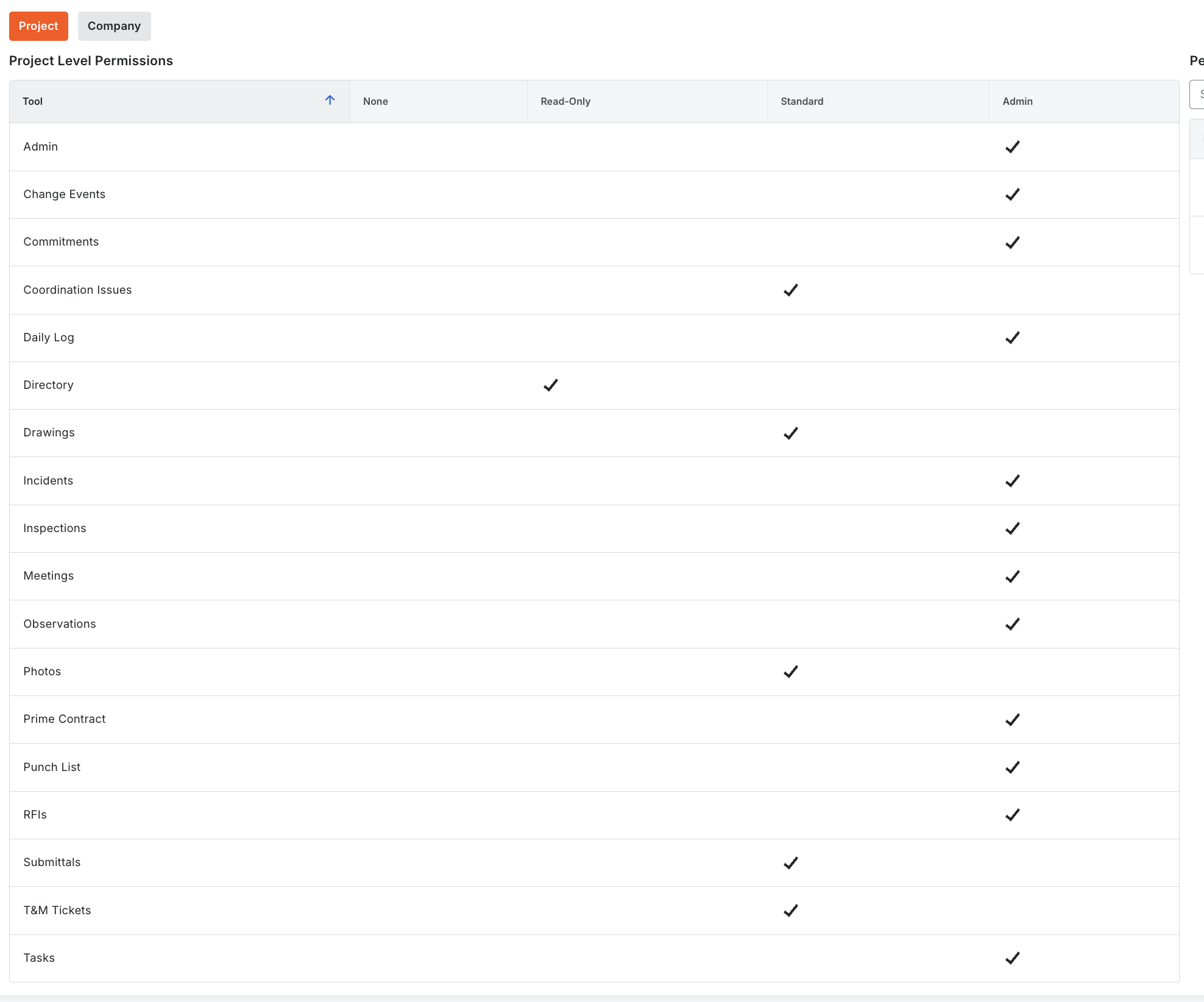
Section titled “Configure the required app permissions”When creating or editing the app in the Procore Developer Portal, open Data Connector Components, choose Service Account Authentication, and configure the following permissions. These are the complete non-None permission selections required by the app. Leave tools not listed below set to None.
Project-level permissions
Section titled “Project-level permissions”| Tool | Permission |
|---|---|
| Admin | Admin |
| Change Events | Admin |
| Commitments | Admin |
| Coordination Issues | Standard |
| Daily Log | Admin |
| Directory | Read-Only |
| Documents | Standard |
| Drawings | Standard |
| Forms | Standard |
| Incidents | Admin |
| Inspections | Admin |
| Meetings | Admin |
| Observations | Admin |
| Photos | Standard |
| Prime Contract | Admin |
| Punch List | Admin |
| RFIs | Admin |
| Submittals | Standard |
| T&M Tickets | Standard |
| Tasks | Admin |
Hardline’s Forms and Documents tools require Standard permission for both tools at the project level. If you already configured the integration, update these permissions in your app’s Service Account Authentication settings.
Company-level permissions
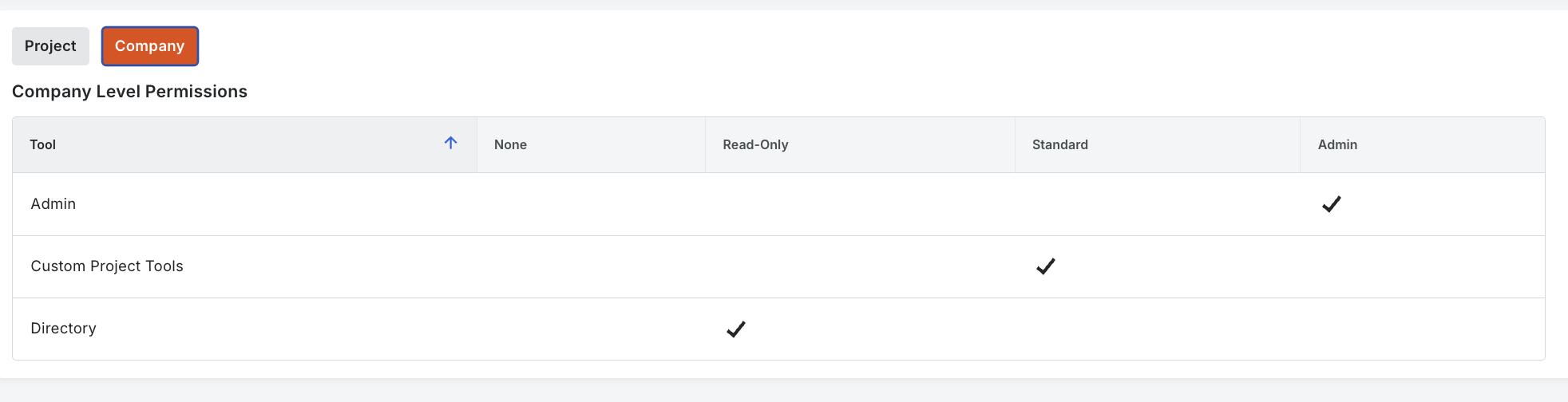
Section titled “Company-level permissions”| Tool | Permission |
|---|---|
| Admin | Admin |
| Custom Project Tools | Standard |
| Directory | Read-Only |
Install the app and allow project access
Section titled “Install the app and allow project access”Procore installs a data connection app at the company level. You then choose the projects the app is permitted to access. Complete these steps as a Procore company administrator.
- In Procore, open the company that Hardline should access.
- Open the Company Admin tool. Under Company Settings, select App Management.
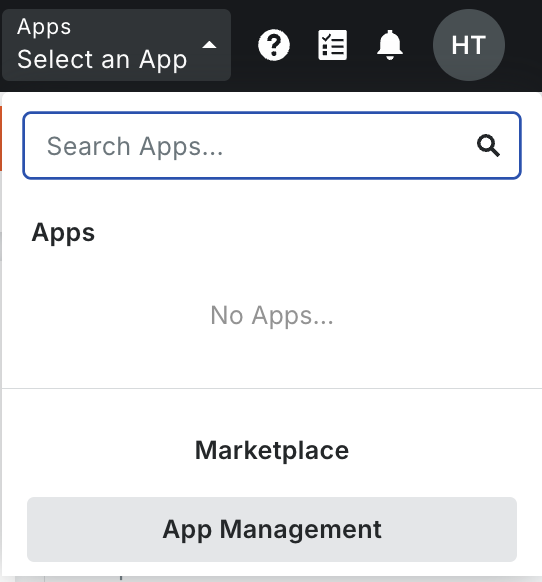
- On the App Management page, click Install App, then select Install Custom App.
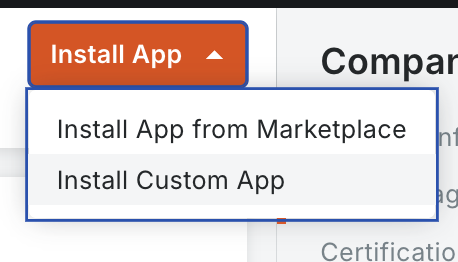
- Enter the app’s 36-character App Version ID, click Install, and confirm the installation.
- Review the app’s Data Connector Components before approving access. Confirm the project- and company-level permissions match the required permissions above.
- Select only the projects Hardline should access and finish the installation.
- If you need to add a project later, return to Company Admin > App Management, locate the app, and click View.
- Open the Permissions tab, select one or more projects from the permitted-projects list, and click Add.
The app can run only in permitted projects. Its DMSA receives the project-level permissions defined by the app, so review the permission list carefully and keep access limited to the projects and tools your team needs.
Connect Procore in Hardline
Section titled “Connect Procore in Hardline”- Open Hardline.
- Go to
Settings > Integrations. - Select
Procore. - Click
Add credentials. - Choose
Client credentials. - Use the token URL and API base URL for the Procore environment you are connecting:
| Environment | Token URL | API base URL |
|---|---|---|
| Production | https://login.procore.com/oauth/token | https://api.procore.com |
| Developer sandbox | https://login-sandbox.procore.com/oauth/token | https://sandbox.procore.com |
Procore’s sandbox environment uses separate credentials, app installs, company IDs, and project IDs. Confirm the client ID and client secret come from the same environment as the API base URL.
- Paste the token URL into
Token URL. - Paste the Procore client ID into
Client ID. - Paste the Procore client secret into
Client secret. - Paste the matching API URL into
API base URL. - Optionally enter the Procore company ID in
Default company ID. Leave it blank to let Hardline discover the company from Procore. - Click
Connect. - Click
Test connection. - Enable the Procore tool policies your team wants available.
Production defaults:
https://login.procore.com/oauth/tokenhttps://api.procore.comRequired Procore context
Section titled “Required Procore context”Most Procore tools need explicit IDs. The assistant can look up IDs with read tools, but write tools should still be reviewed before submission.
Common IDs:
company_idproject_id- user, vendor, location, observation type, RFI manager, punch item type, contract, or change event IDs depending on the workflow
Troubleshooting
Section titled “Troubleshooting”| Symptom | What to check |
|---|---|
| Token request fails | Confirm the client ID, client secret, and token URL are from the same Procore environment. Sandbox and production credentials are separate. |
| Hardline can authenticate but cannot read a project | Confirm the app is installed in the company and the DMSA has access to that project. |
| A write tool fails with permission errors | Confirm the DMSA has permission for the exact Procore tool and project. |
| Records appear under a service user | This is expected for DMSA or service-account access. Use a clearly named Procore service account. |